FAQ
Helpful guides and step-by-step instructions for using the system.
51 matching guides
What should I set up first?
How it works
Complete your company details, branding, banking details and document terms in Settings. Add customers and products/services, then create a draft quote or invoice. Review the draft before sending it.
Can I use JH Finance on my phone?
How it works
Yes. Creation forms use stacked item cards and reports use responsive charts. Wide financial tables can be scrolled horizontally. Check documents in their PDF view before sharing.
Why can’t I access a feature?
How it works
Your company subscription and your user permissions both affect access. Ask your company administrator to check your role and billing status. A company administrator manages subscription changes.
How do I add team members?
How it works
A company administrator can manage employees and their access from Settings. Choose the minimum role needed for the person's work. Do not share a single account between staff.
How do I add a customer?
How it works
Open Customers, enter the business/contact details and save. Select that customer when creating a quote or invoice. Review email and VAT details before sending financial documents.
What is the difference between a product and a service?
How it works
Products can carry physical stock and purchase costs. Services represent work or other non-stock items. Choose the correct type and keep prices and VAT settings up to date.
Will changing a catalogue price change old invoices?
How it works
An invoice stores its own selling prices. New invoices also capture available product costs and product type. Older invoices with no cost snapshot are flagged in reports rather than recalculated from today's purchase price.
Why are some costs shown as missing?
How it works
Historical invoices may not have stored a purchase cost. A zero catalogue cost may also be unconfirmed. Missing cost data is a completeness issue; it is not proof that the item had no cost.
How do I create a quote?
How it works
Open Quotes and choose a customer. Select catalogue items or add custom descriptions, quantities, prices and VAT. Add the validity date, notes and terms, then save the draft and review it before sending.
How do I create an invoice?
How it works
Open Invoices, choose a customer and complete the date, items and payment terms. Review the totals and save a draft. Use the document's actions to review, download or send it.
Can I create an invoice from a quote?
How it works
Use the quote's conversion action after checking that it is eligible for conversion. Review the resulting invoice, dates and payment terms. Converting a quote does not mean payment has been received.
How does an invoice discount affect VAT?
How it works
The document discount reduces the taxable selling value before the final VAT total. Review the line VAT rates and the displayed document totals. Ask your accountant to confirm the tax treatment where needed.
What happens when notes are long?
How it works
Notes, descriptions and terms flow across PDF pages. Headers and page numbers identify continuation pages, and footers have reserved space so text does not overlap them.
Can I use a custom invoice number?
How it works
The invoice creation form includes an optional custom number. It must be unique within your company. Leave it blank to use automatic numbering. Do not reuse an issued invoice number.
Why is a draft excluded from revenue reports?
How it works
A draft is work in progress. The reporting workspace includes issued invoice statuses and credit-note adjustments rather than treating every saved draft as earned revenue.
How should I correct an issued invoice?
How it works
Keep a traceable correction. Review whether a credit note and replacement invoice are required rather than deleting the history of a completed transaction. Follow your accountant's instructions for material corrections.
Does a recurring invoice automatically debit a bank account?
How it works
No. Generating an invoice and collecting payment are separate operations. A recurring invoice schedule does not by itself authorise a bank debit or a PayFast recurring charge.
How do I check a recurring billing schedule?
How it works
Review the contract start/end dates, billing interval, next invoice date, deposit settings and generated history. Use the generated document for the relevant period when following up on payment.
What should I do if an invoice email fails?
How it works
Check the email address and company email configuration. Confirm whether a document already exists before retrying. A failed email is not proof that invoice creation failed.
How do I capture an expense?
How it works
Open Expenses and enter its date, supplier, category, description and amount. Check VAT against the receipt. Expenses are saved for review; an administrator approves them for reporting.
Can I scan a receipt?
How it works
Use Scan Slip on the expense form. Review the resulting draft carefully: receipt scanning can misread supplier names, dates, totals and VAT. Keep the receipt as supporting evidence.
How do I link an expense to a paid invoice?
How it works
Open Allocate / review on the expense. Keep Show paid invoices only selected, choose the invoice and enter its share of the expense's reportable cost. Save the allocation.
Can one expense be split across invoices?
How it works
Yes. Add an allocation for each issued invoice. The same invoice cannot appear twice and the combined allocations cannot exceed the expense's cost after its reviewed VAT treatment.
How do I record shared overhead?
How it works
Leave the expense wholly or partly unallocated. Shared overhead remains in company-level operating costs. Allocation identifies a direct cost; it does not deduct the same expense a second time.
Why classify inventory purchases and capital items separately?
How it works
An inventory purchase is not automatically the cost of a sale, and a capital purchase is not automatically a current operating expense. Separate classification prevents double counting and flags items needing accounting treatment.
Who decides whether VAT is recoverable?
How it works
An administrator reviews the expense's VAT treatment using the supporting documentation and appropriate advice. Unreviewed VAT is flagged. The app does not assume every VAT amount is claimable.
How do I record a partial payment?
How it works
Select the correct invoice in Payments and enter the actual amount received. Review the remaining balance after saving. A partial payment must not be represented as full settlement.
Does uploading proof of payment mark an invoice as paid?
How it works
Proof is evidence for review, not an independently verified bank receipt. Review the payment and record or approve it through the appropriate workflow.
Why does PayFast show pending confirmation?
How it works
A browser return alone does not prove successful payment. The app waits for a verified PayFast notification before treating a platform purchase as paid.
Why does PayFast reject a signature?
How it works
Use the updated signing code, matching sandbox/live merchant settings and the exact account passphrase. Restart the app after changing its server configuration. Never share the passphrase in a support message.
Are customer invoice payments the same as platform subscriptions?
How it works
No. Customer invoice payments settle your business invoices through your company's configured gateway. Platform subscriptions pay for your company's use of JH Finance.
What does recorded-cost contribution mean?
How it works
It is issued revenue after credit notes, less approved operating expenses and captured product costs in the period. It is not a complete statutory profit calculation if labour, depreciation, reversals or other costs are missing.
Why is profit different from money received?
How it works
Revenue and expense dates describe business activity, while payment dates describe customer receipts. An unpaid invoice can appear in revenue; a receipt can relate to an earlier invoice. Read the basis and dates shown on each report.
How do I set the company financial year?
How it works
An administrator opens the reporting workspace's Company financial-year settings and chooses its recurring start month and day. The financial year ends the day before the next start. Historical documents are not redated.
Can I report on a different period?
How it works
Set both From and To dates, then update the report. The exact selected dates are displayed. Use Current financial year to return to the company configuration.
Do screen figures match the Excel export?
How it works
The financial workspace and its export use the same calculation layer and selected period. Confirm the date range before downloading. Legacy reports may use different definitions while they are being migrated.
Is the annual report a completed tax return?
How it works
No. It is supporting information for preparation and reconciliation. Review incomplete records and tax treatment with your accountant. No export should be submitted as a statutory return without checking its required format and completeness.
What can the AI assistant do?
How it works
It can search permitted company records and suggest administrative follow-ups. Open the linked records to verify an answer. It cannot independently change records or send messages.
What is sent to OpenAI?
How it works
When enabled, your question and a limited set of matching record details are processed through the server-side API. Review the application's privacy arrangements before using sensitive information. Without AI configuration, basic record search remains available.
How should I back up the application?
How it works
Keep a restorable MongoDB backup, application files, uploaded documents and private configuration. Test restore in a separate environment. Save another copy outside the computer and obtain a fresh backup before a live migration.
Will bank API connections work automatically?
How it works
A future provider needs its own connector, credentials, consent and testing. A provider-neutral transaction format helps avoid redesigning the accounting workflows; it does not mean every bank is already connected.
Why is login failing with ReplicaSetNoPrimary?
How it works
MongoDB cannot discover the primary requested by the connection string. Adding replicaSet=rs0 does not create a replica set. Check the actual database configuration and reachable member addresses. Transactional payment handling needs a working replica set.
Why does npm ci show EPERM on Windows?
How it works
A running Next.js process can lock its native files. Stop only the app being updated, then retry installation. Avoid terminating every Node process if other websites are running.
Why does Google Tag Assistant find no tag on PayFast?
How it works
PayFast's hosted checkout is a different website. Inspect the JH Finance page instead. The Google tag is enabled in the production build; a purchase conversion follows a confirmed non-sandbox platform payment.
How to setup your email settings in the backend.
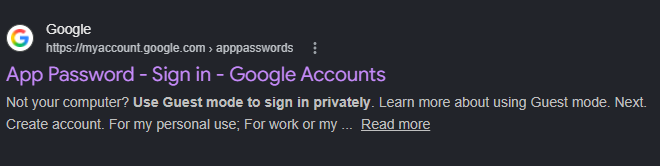
Step 1
Go to the following link https://myaccount.google.com/apppasswords
Step 2
Log into the required Gmail account that you would like to use.
Step 3
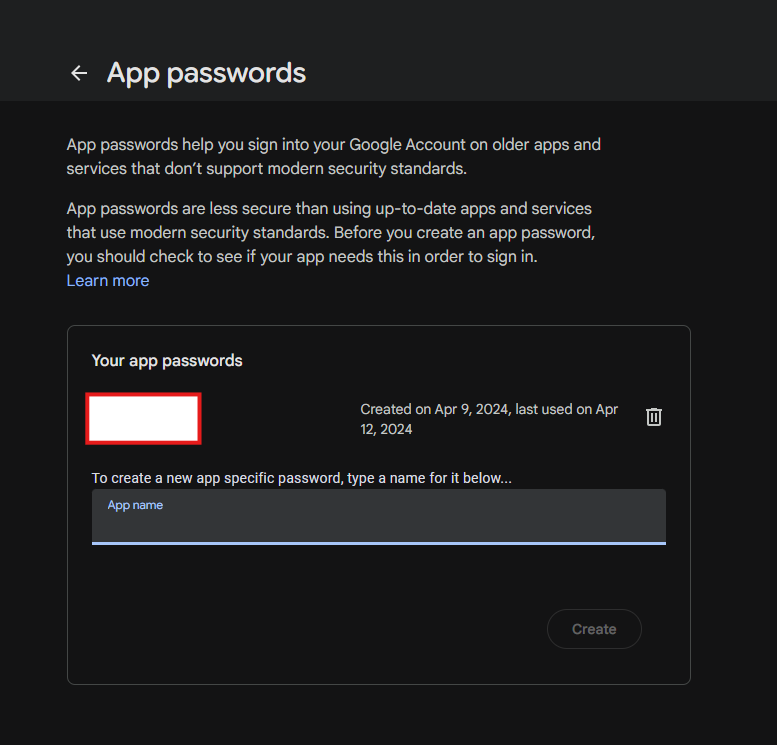
Once logged in add a name for the app that your password will be used for JH Finance Accounting.
Step 4
Once that is done you will be given a password that can be used to log into the email settings safely.
Step 5
Go to your settings panel for the Accounting Dashboard then navigate to integration and scroll to the bottom where you will see the email settings portion where you will select the Gmail option then you will add your email and the password you received
Step 6
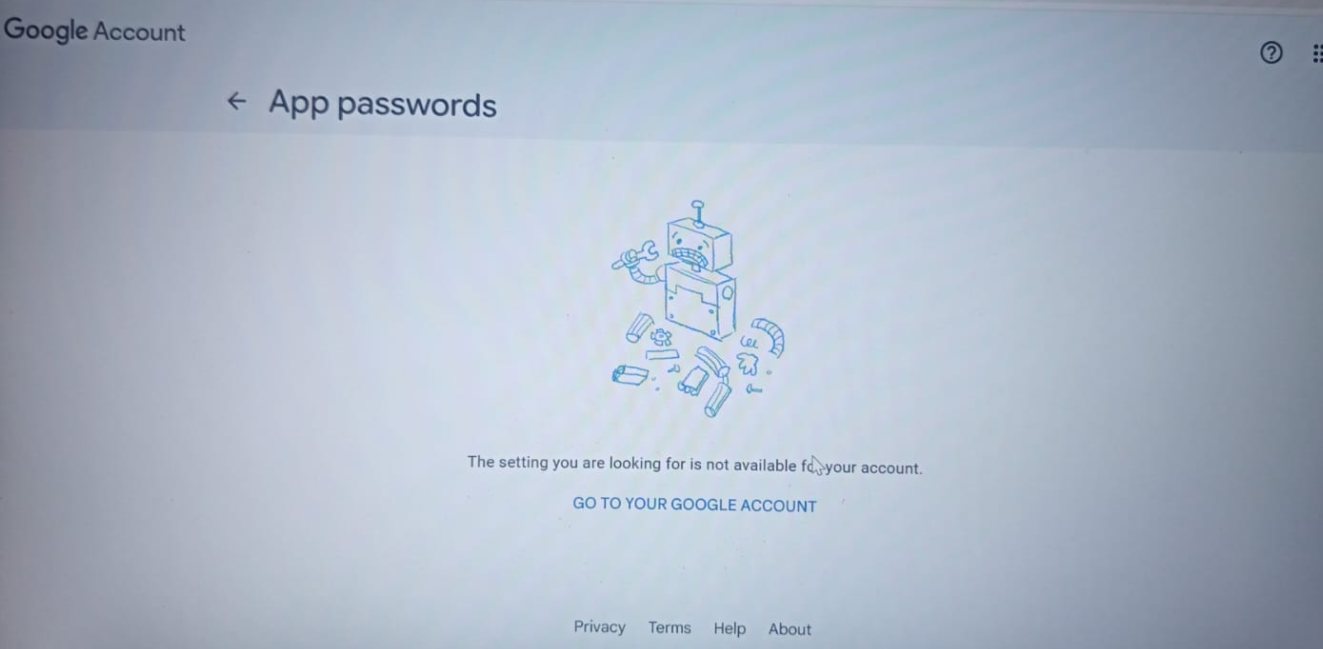
If you see this error message go to your account settings (Manage Google Account) then navigate to security and sign in, then turn on 2 step verification when you the go back after turning on to the Gmail app password page you will be able to create a password.
How to do a quotation
Step 1
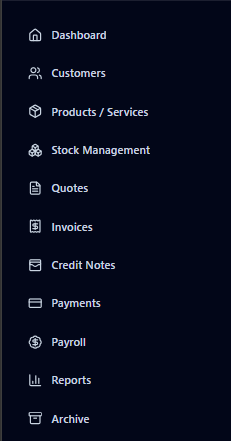
Navigate in the sidebar to the Quotes page.
Step 2
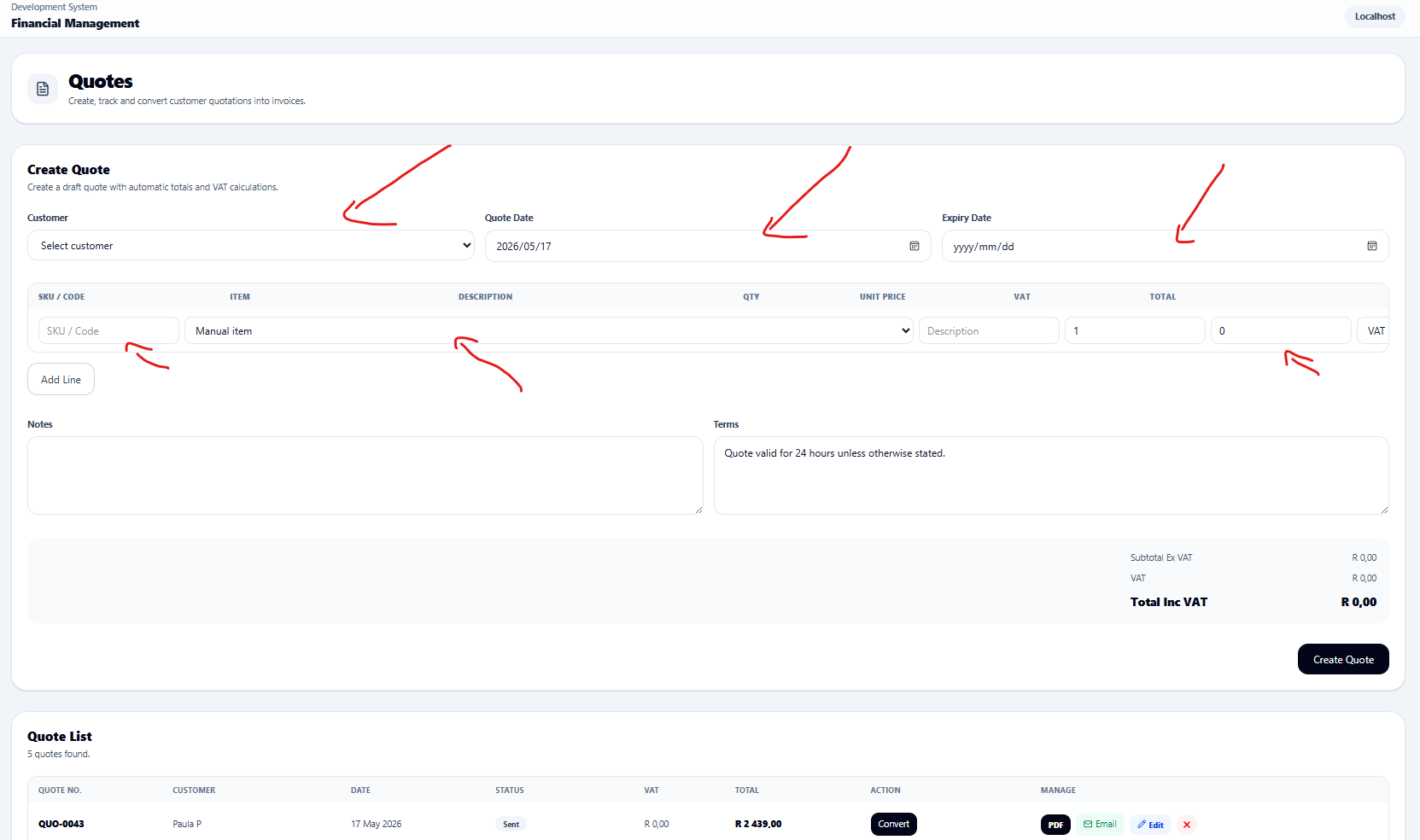
In the right-hand page, you will be able to select a customer from the dropdown showing all the loaded customers these details loaded will be automatically used by the system for pdf and email generation and sending.
Step 3
After the quotation has been loaded you will have the option to download a pdf email the pdf and, on the email, will be the pdf quotation as well as a URL that can be used by the client to accept the quotation and this will automatically update the status in the system
How to use Stock Management
Step 1
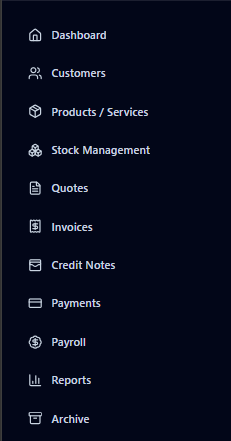
Navigate in the sidebar to the stock management page.
Step 2
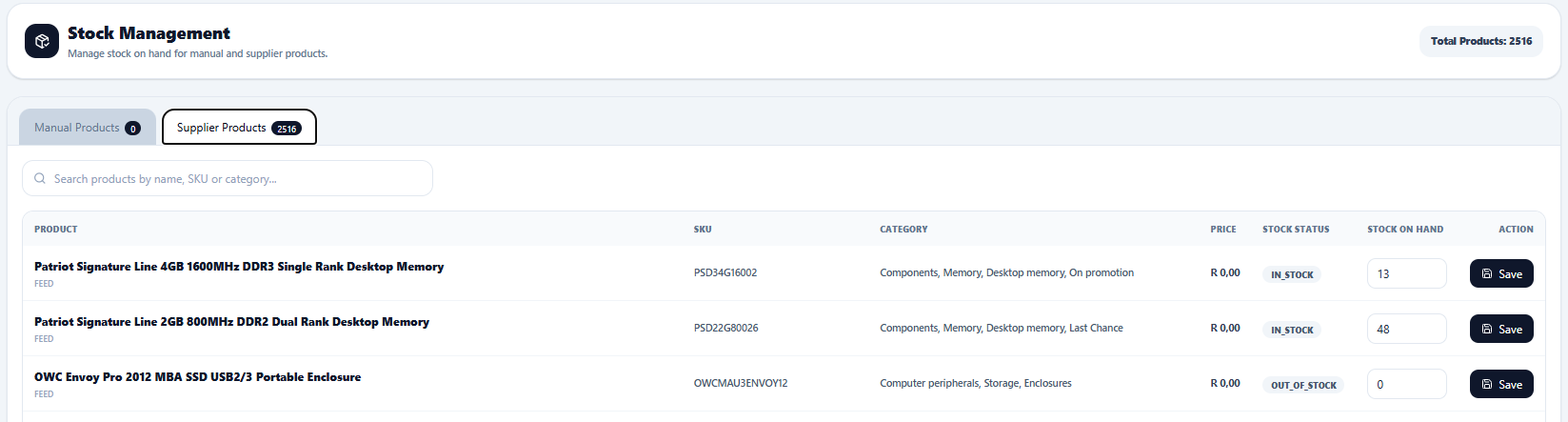
Once in there you will see all the manual and feed products that you have loaded and from here you can add stock levels for different materials products or whatever products you supply here.
Step 3
Once stock levels were changed here as soon as in the invoices those products have been selected and the invoice marked as paid stock level for that product will automatically be adjusted.
Loading Products from a Supplier Through Supplier Feed URL
Step 1
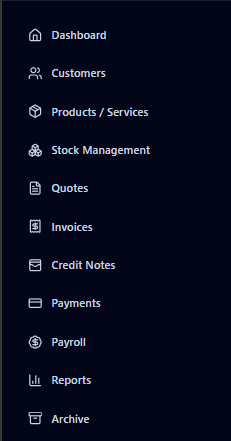
Navigate in the sidebar to the Products/ Services page
Step 2
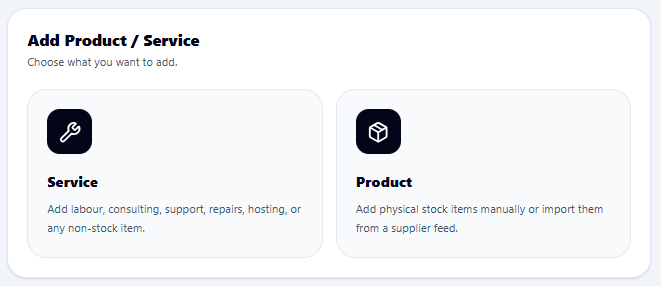
Once opened pick the option for Product
Step 3
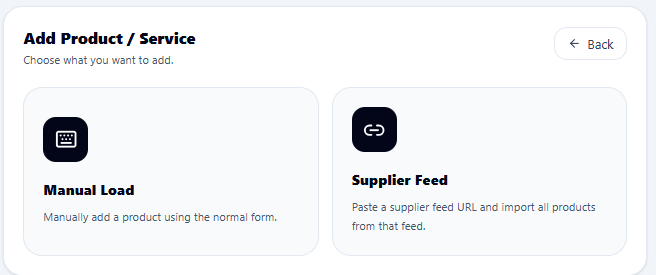
Once opened please pick the supplier feed option.
Step 4
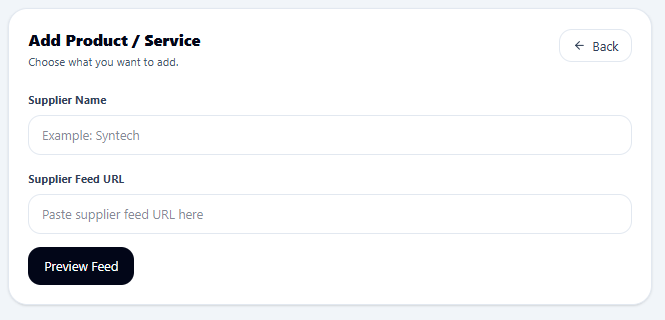
Once supplier feed is picked a form will open which you will have the opportunity to add your supplier feed URL from suppliers.
Step 5
Once you have added the link you will have the option to preview the content being fed from the supplier feed and then map the details to the right fields to fit into your business.
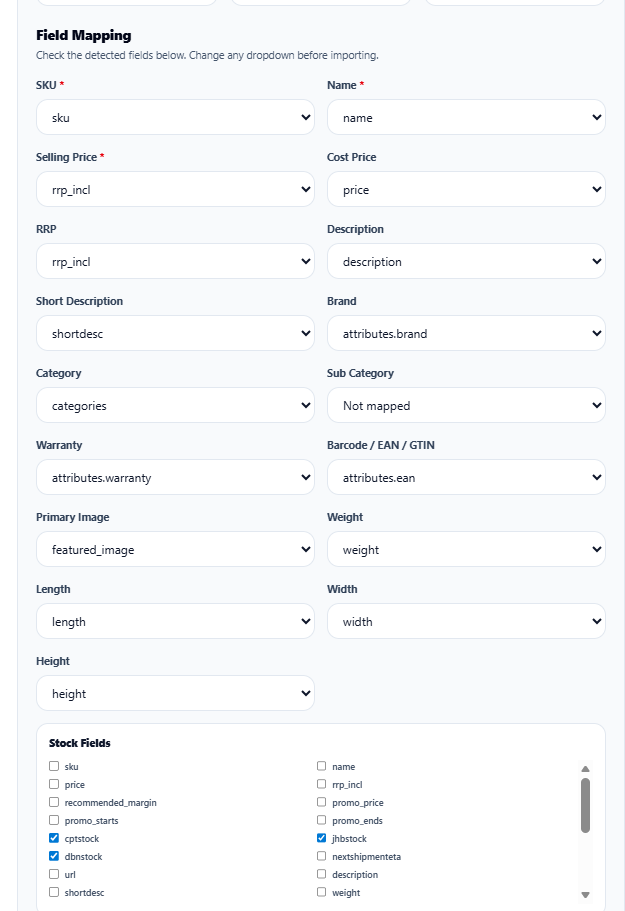
Step 6
Thereafter you will have a clear indication of the different type of loaded products and services and navigate thru each individually to edit or delete them.
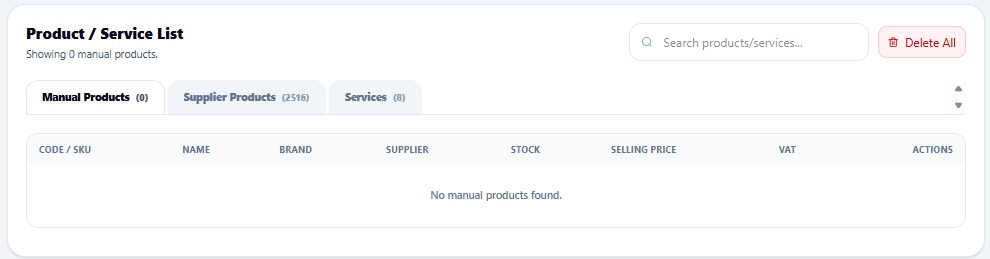
Loading your Own Products
Step 1
Navigate in the sidebar to the Products / Services tab.
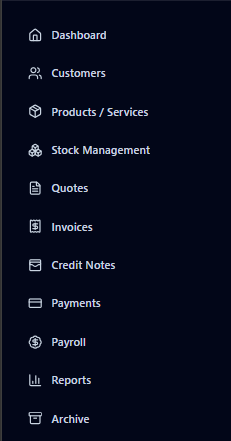
Step 2
On the right you will see the options for Service or Product pick product
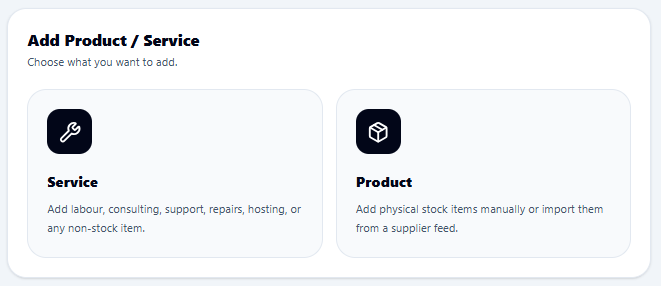
Step 3
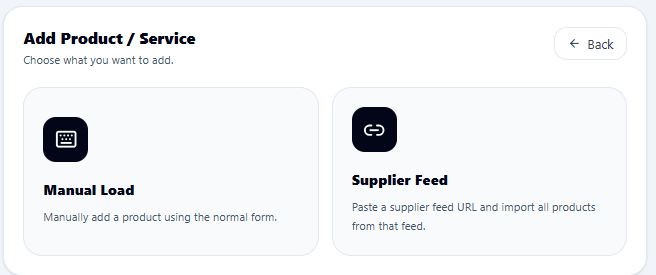
Then pick Manual Load
Step 4
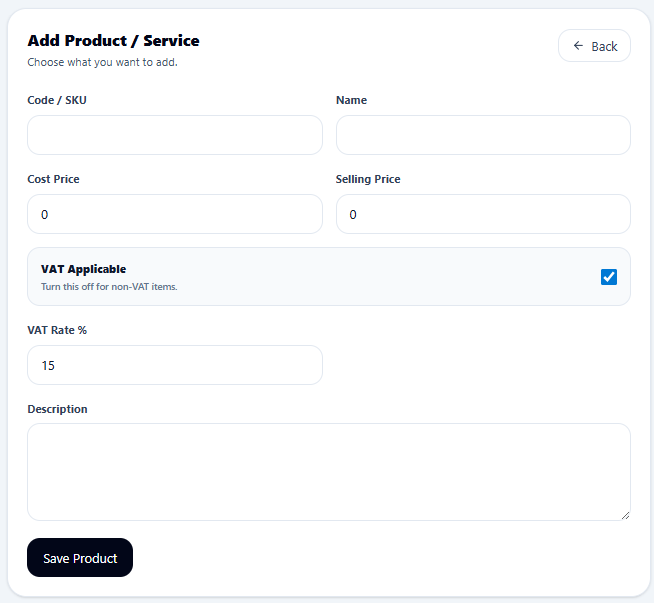
This will open the form required for loading your products and assign your own SKU for each product take note that an SKU is required to make the invoicing and quoting steps much easier.
How To Load New Customers
Step 1
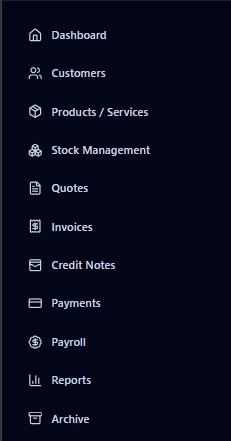
Navigate on the sidebar to the customers tab which will open the full customers' page.
Step 2
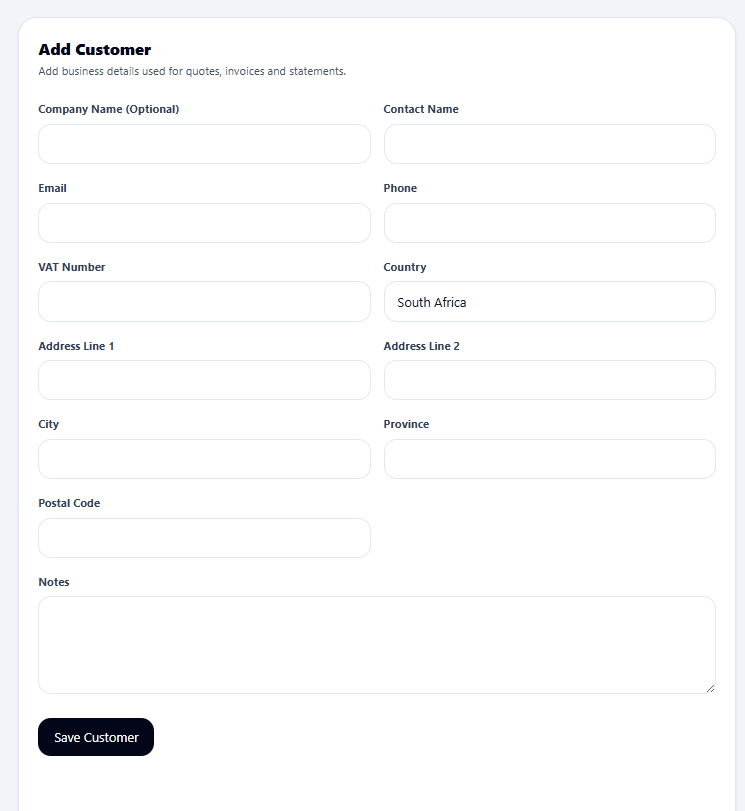
The Form to the right will open and There you will add in all the customer details the company name is optional as well as contact name but one of them need to be filled.
How To Register Your Company Profile + Signup
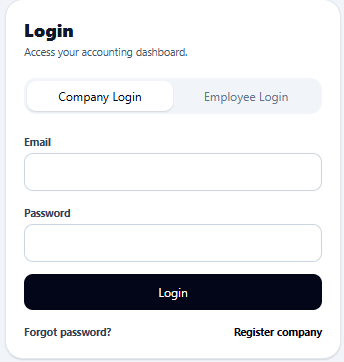
Step 1
Open the URL: https://accounting.jhfinance.co.za then click the register company at the bottom of the form.
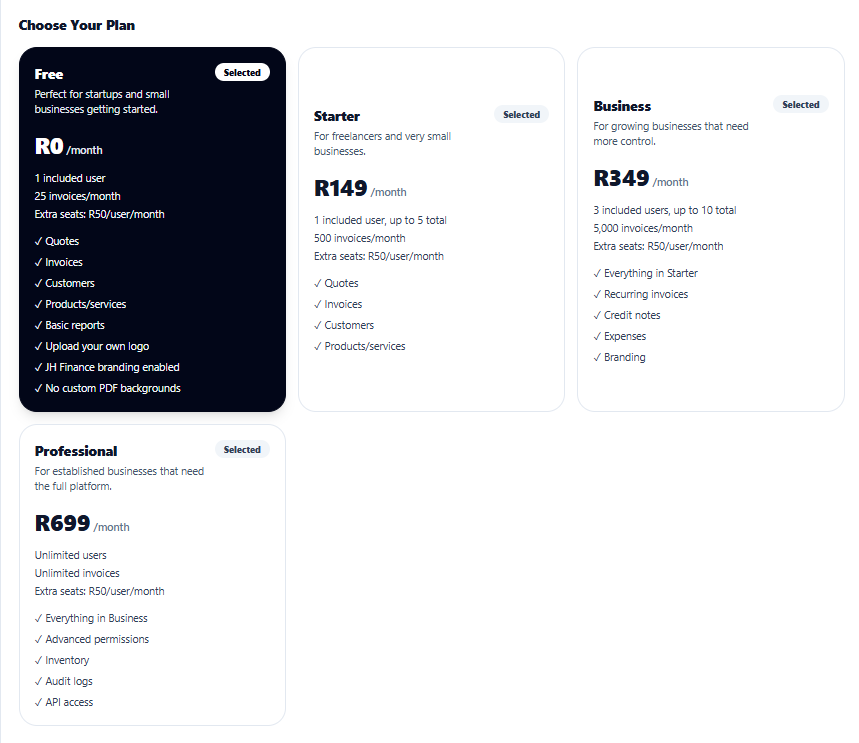
Step 2
Next step is to pick the required package for your company.
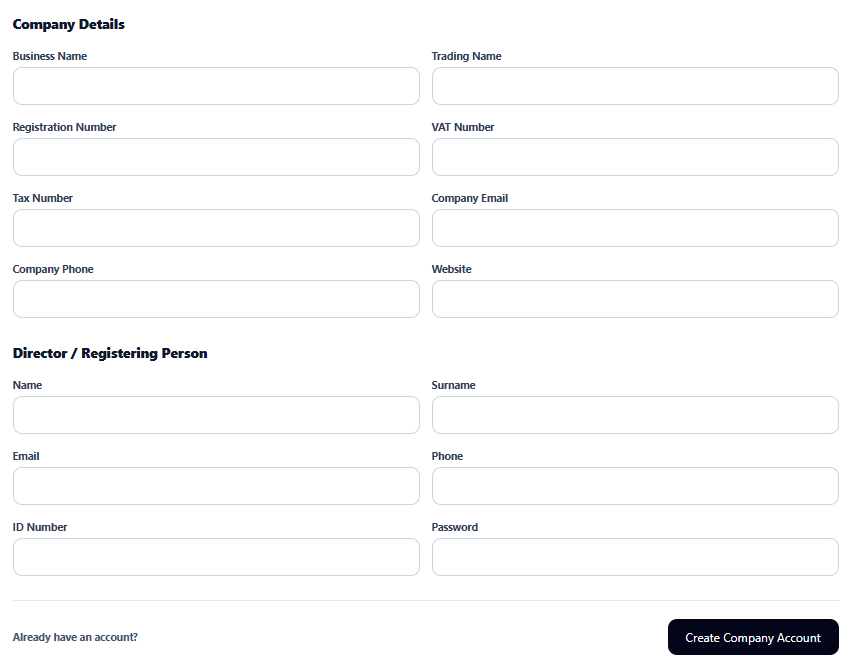
Step 3
The last step is to fill in all the information for your company and main account holder of the account and make payment of the subscription.
Step 4
Once registration if completed you wil be taken to your dashboard and be ready to start your work.